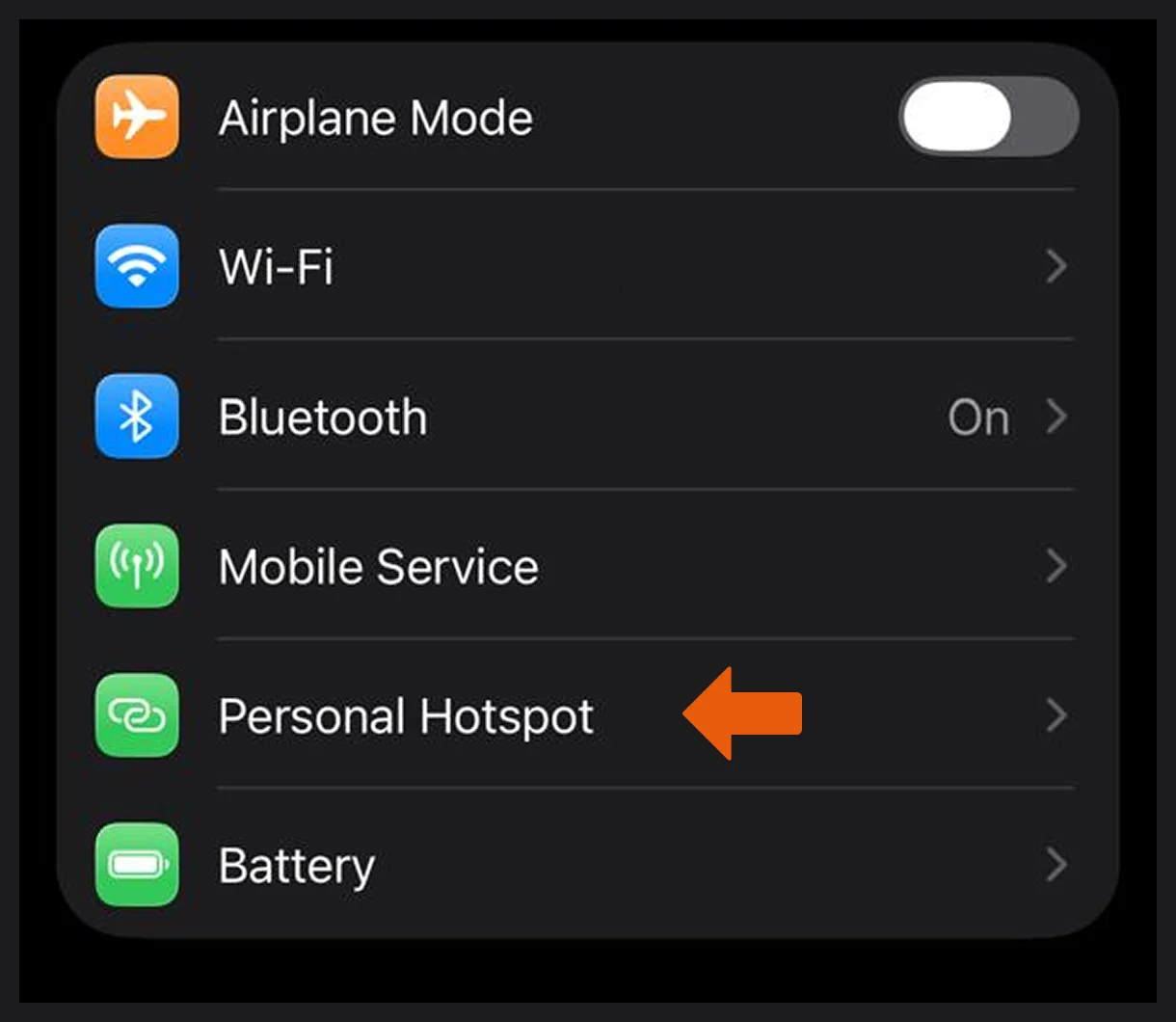

Apple iPhone Hotspot troubleshooting
Cell C users with an iPhone 15, 16, and 17, and/or iOS 26 may face issues activating the hotspot feature. This FAQ provides clear steps and alternative solutions to help you set up your hotspot on the Cell C network and improve your experience.
The issue with the hotspot feature on an iPhone 15, 16,17 and iOS 26 particularly for Cell C users, seems to involve difficulties in activating the hotspot functionality. Some users have been encountering obstacles when attempting to turn on their device's hotspot but unable to find the option on the device which is leading to frustration and inconvenience. This problem appears to be specific to with the iPhone 15, 16,17 models only as well as iOS 26.
In order to find and switch your hotspot on your iPhone 15, 16 & 17 device, simply follow these few easy steps:
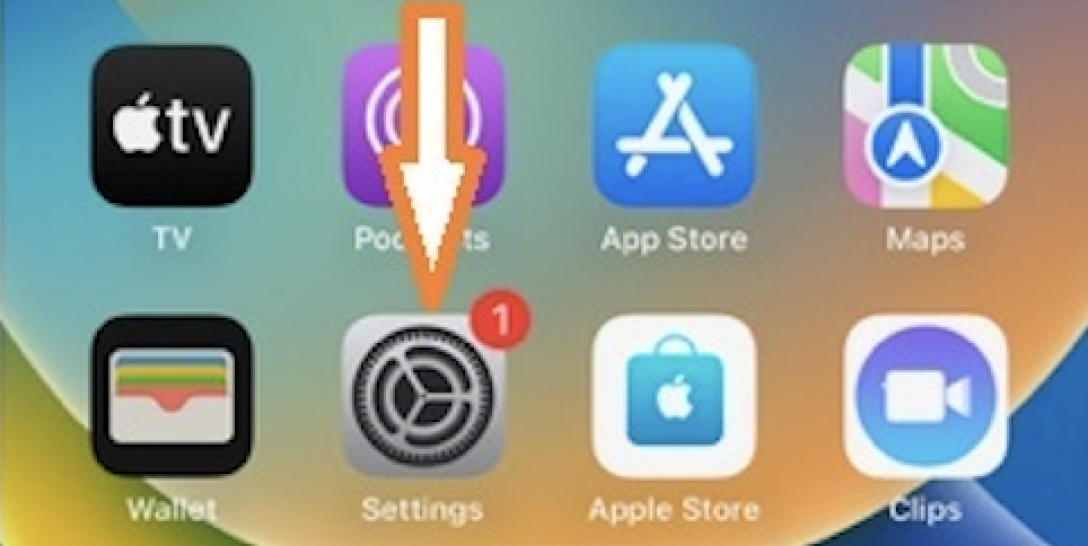
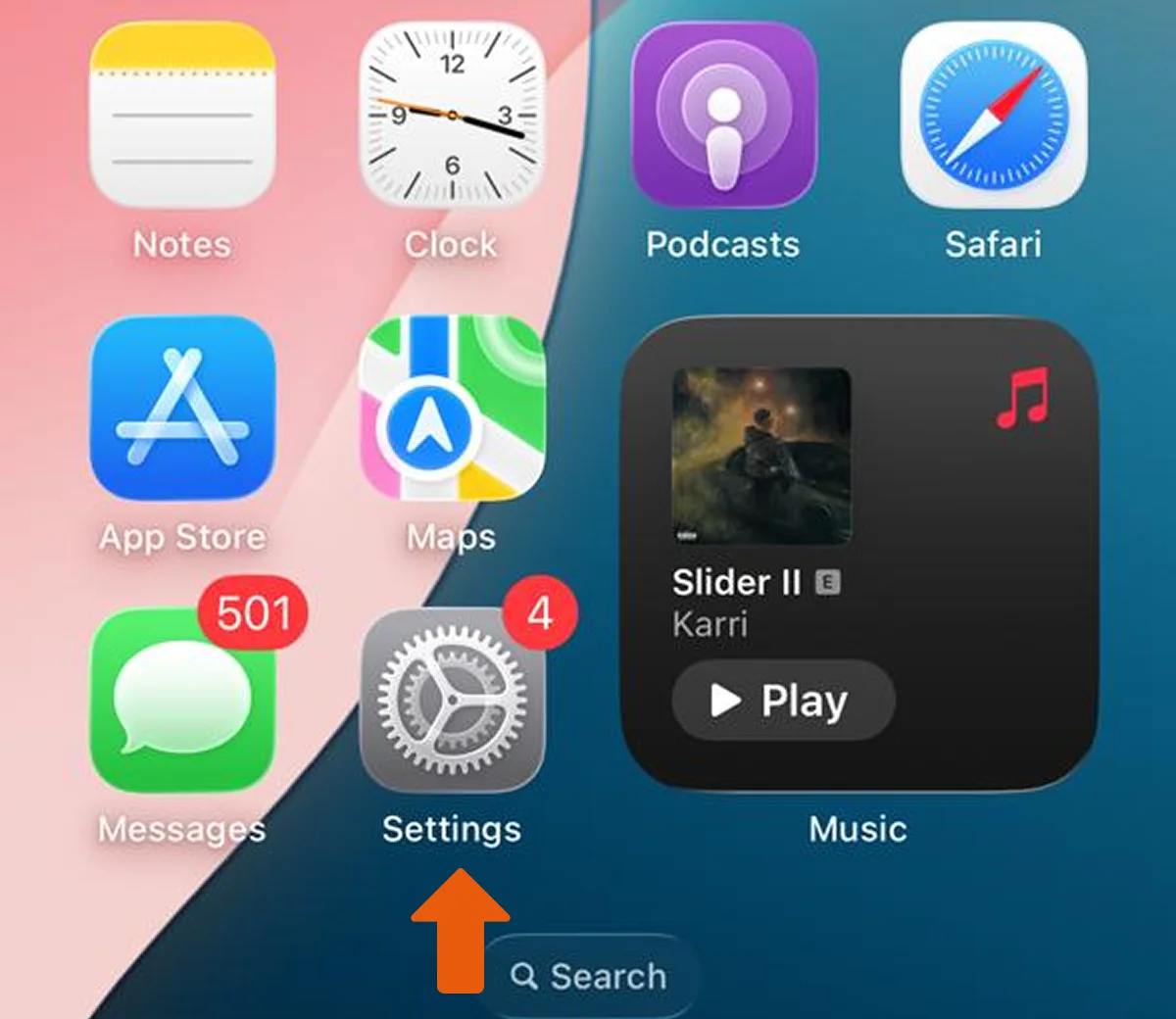
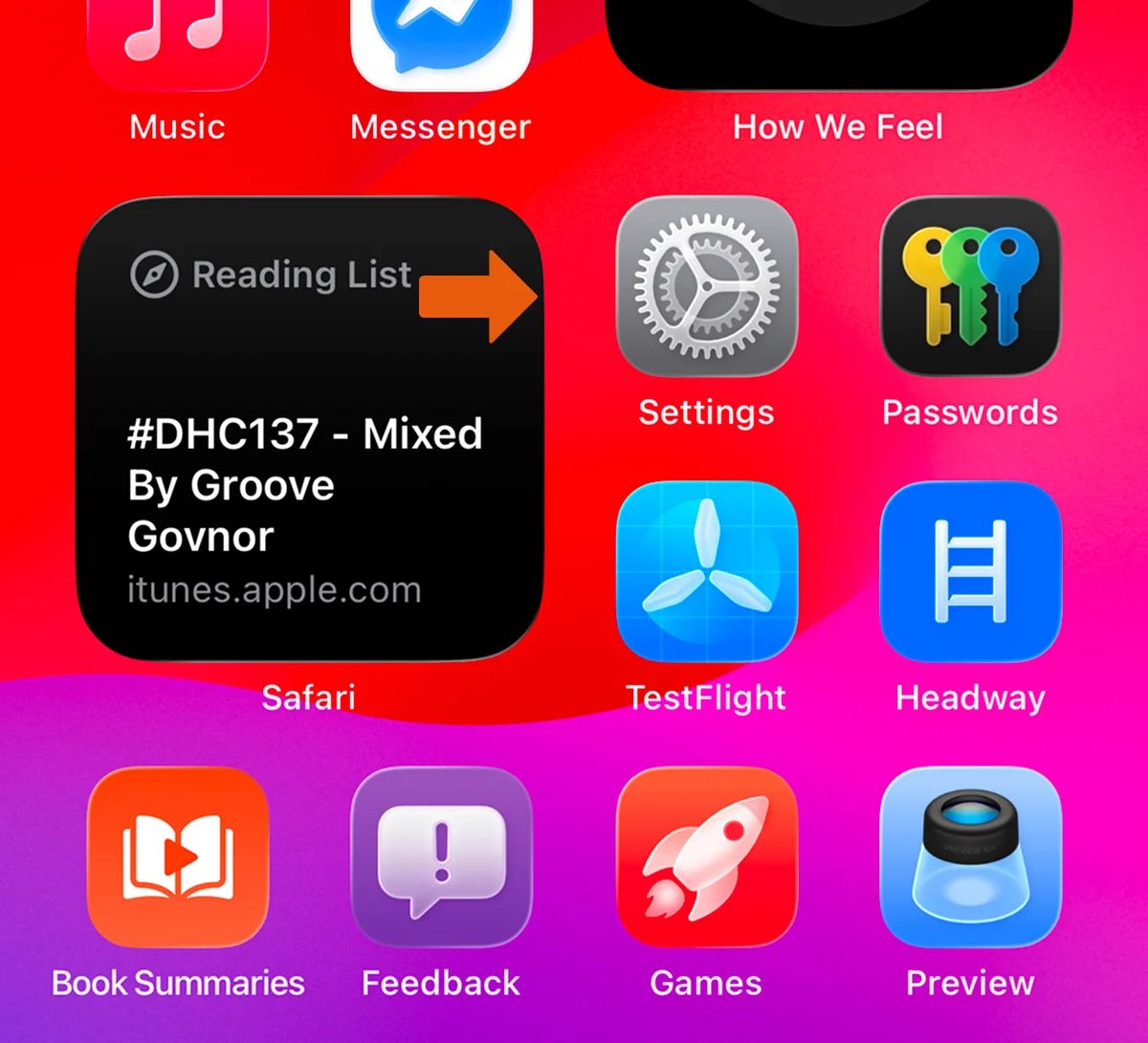
Step 1: Select "Settings"
From the main menu
on your iPhone device, select the "Settings" app.
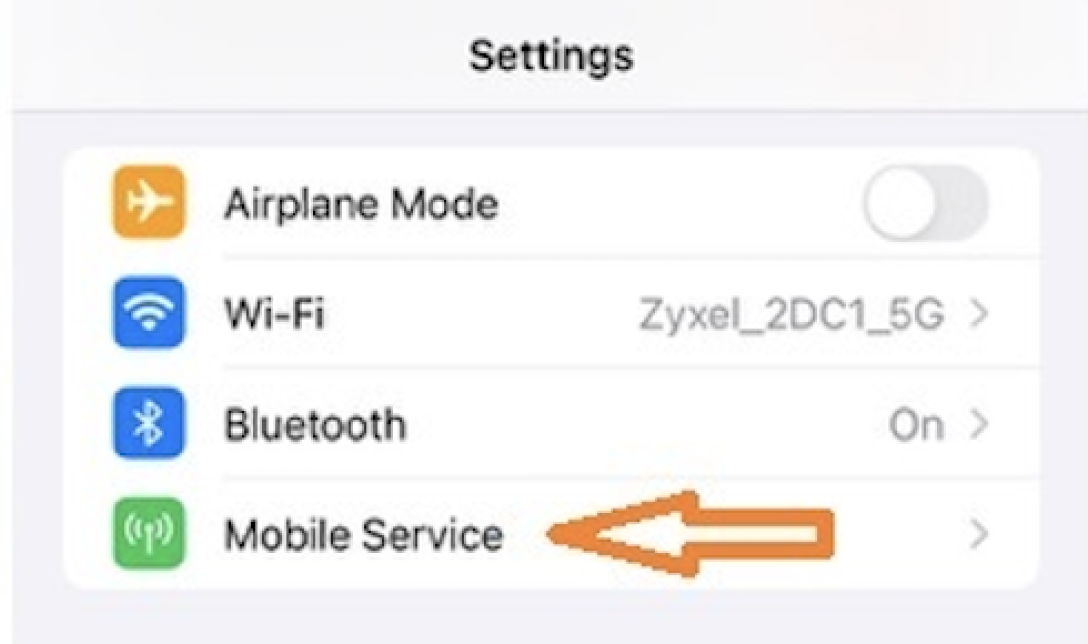
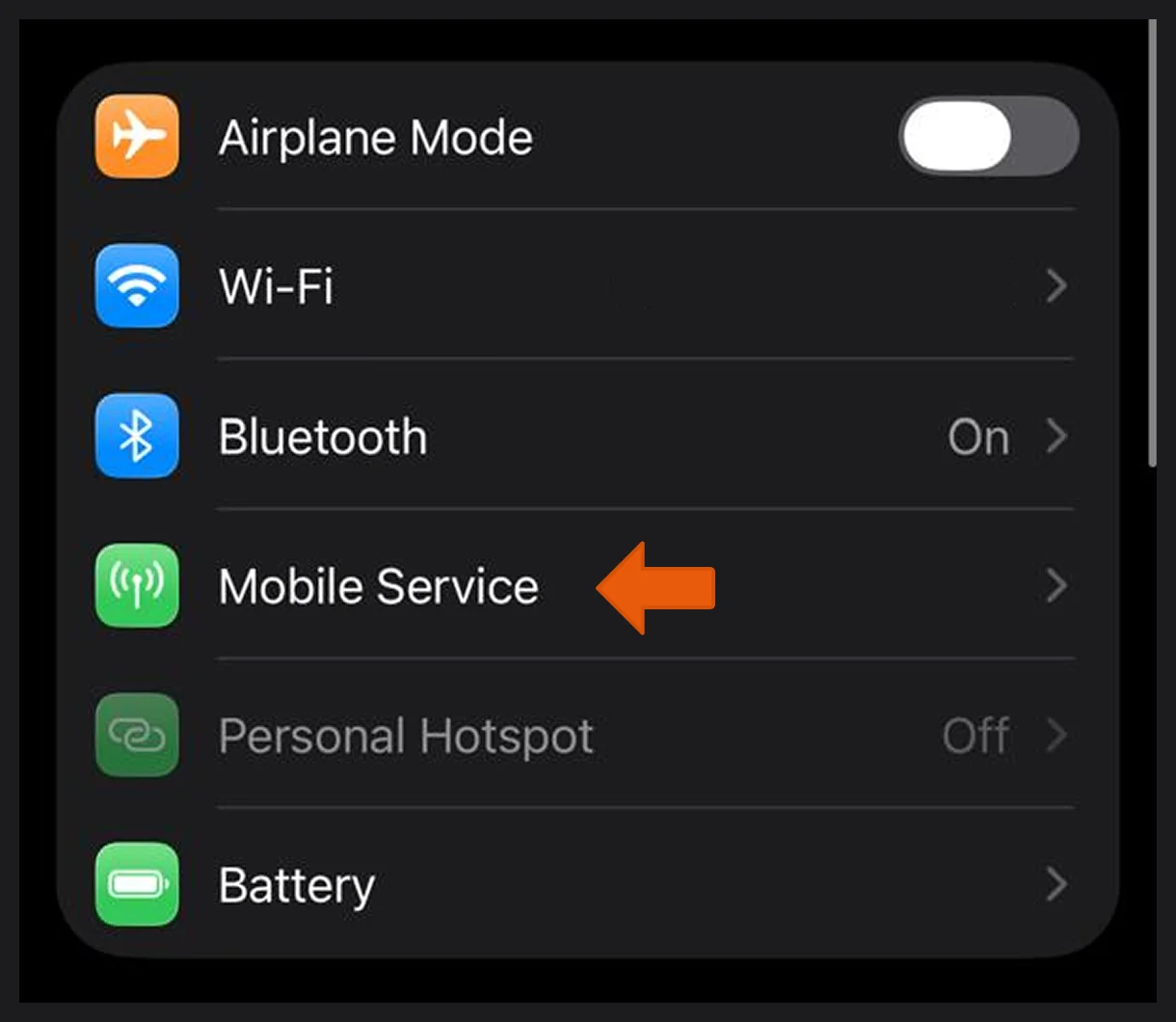
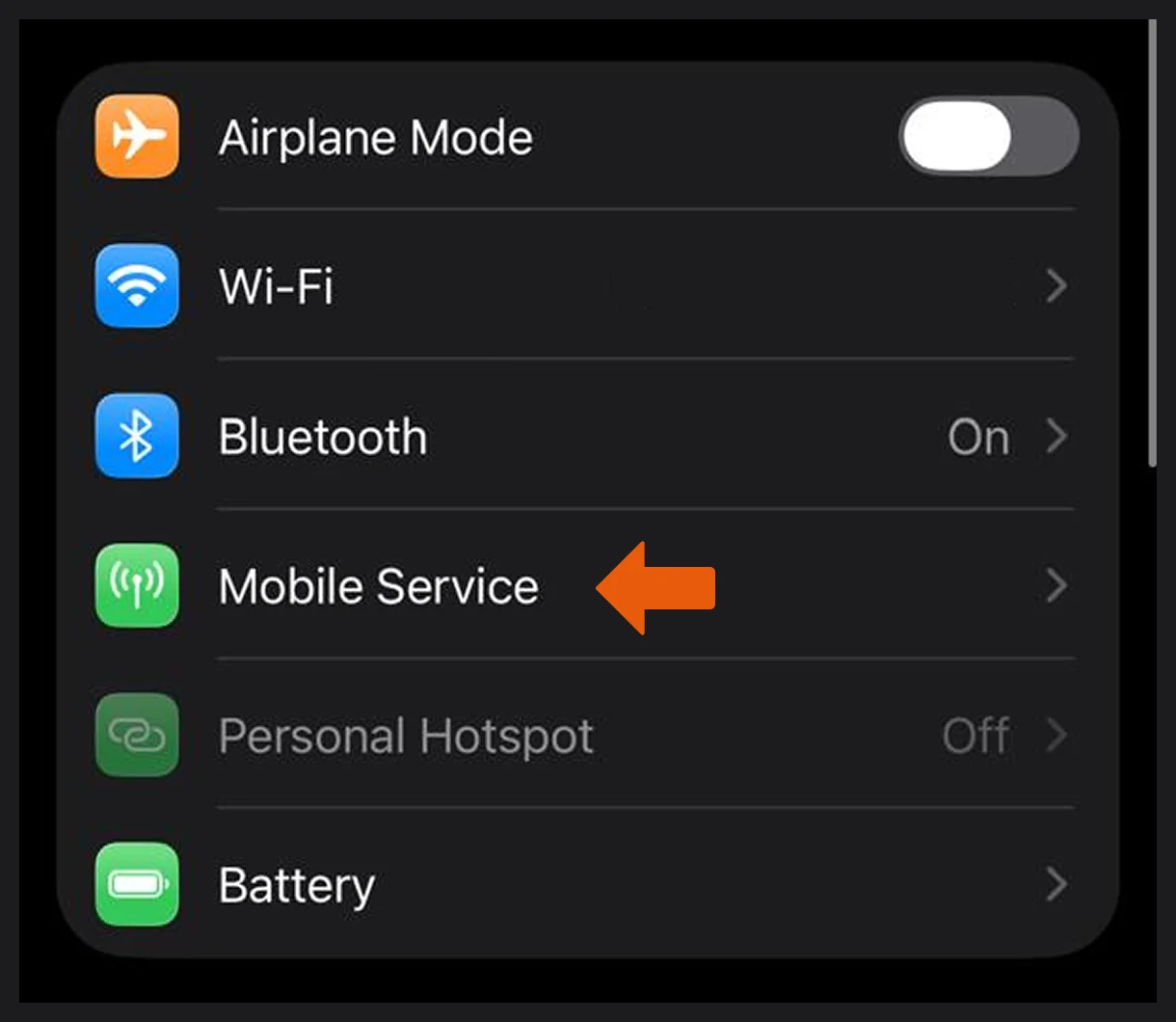
Step 2: Select "Mobile Services"
On the Settings menu there will be an option for "Mobile Services" which
needs to be selected.
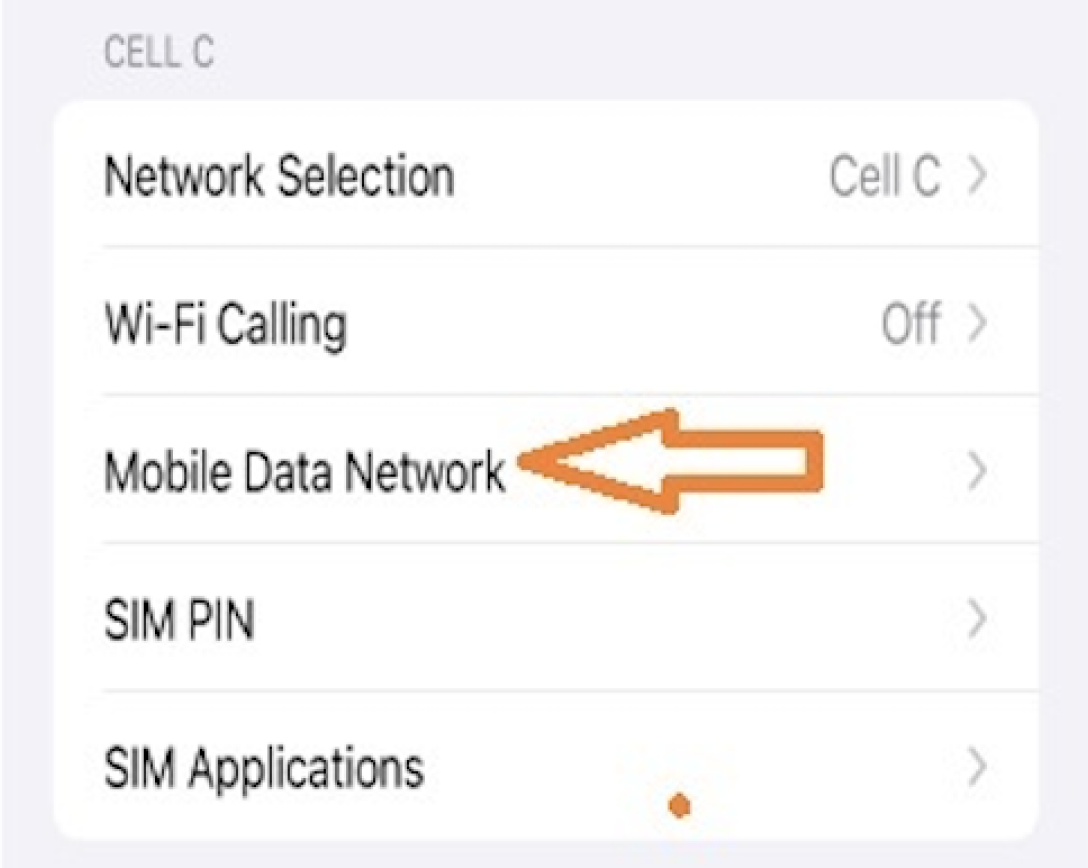
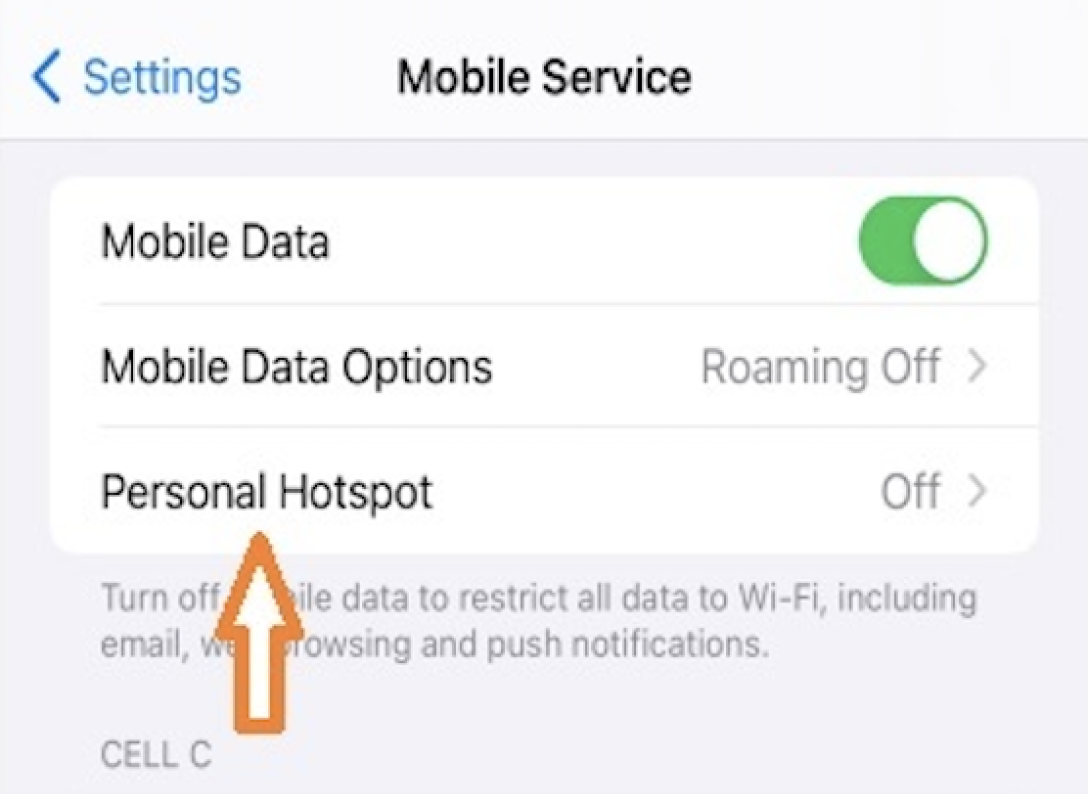
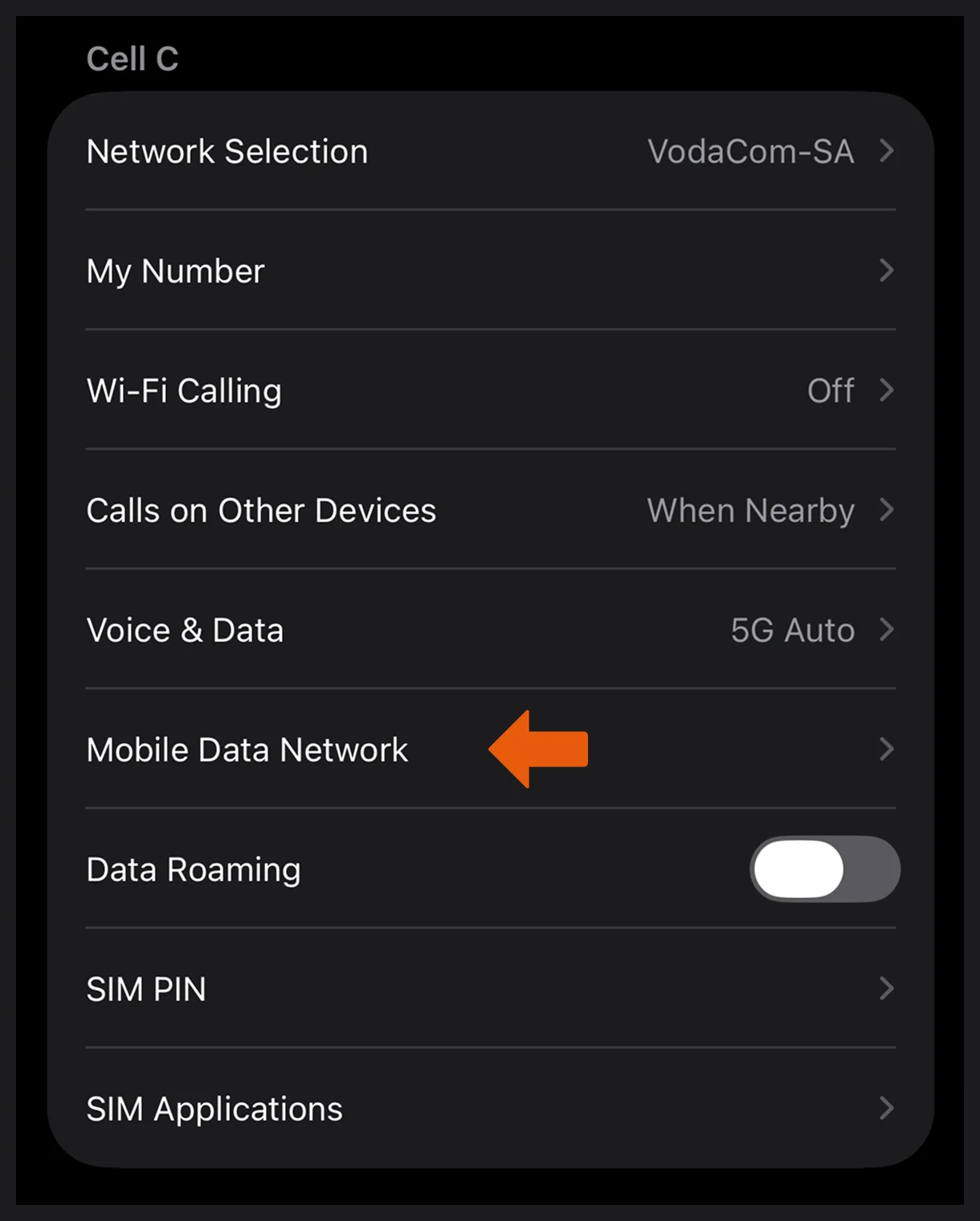
Step 3: Select "Mobile Data Network"
Within the Mobile Services menu, select the "Mobile Data Network" under the
Cell C heading.
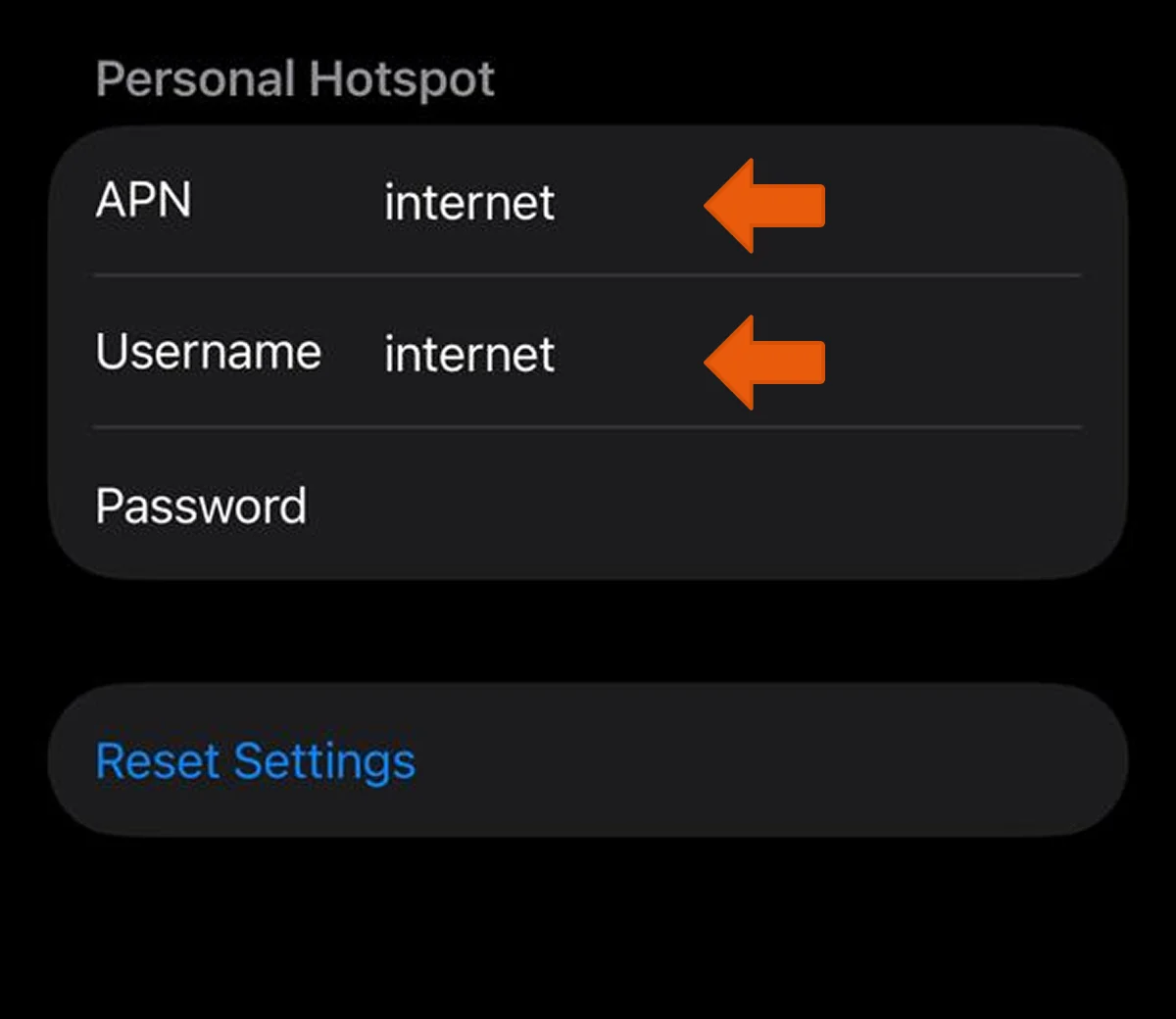
Step 4: Scroll to "Personal Hotspot"
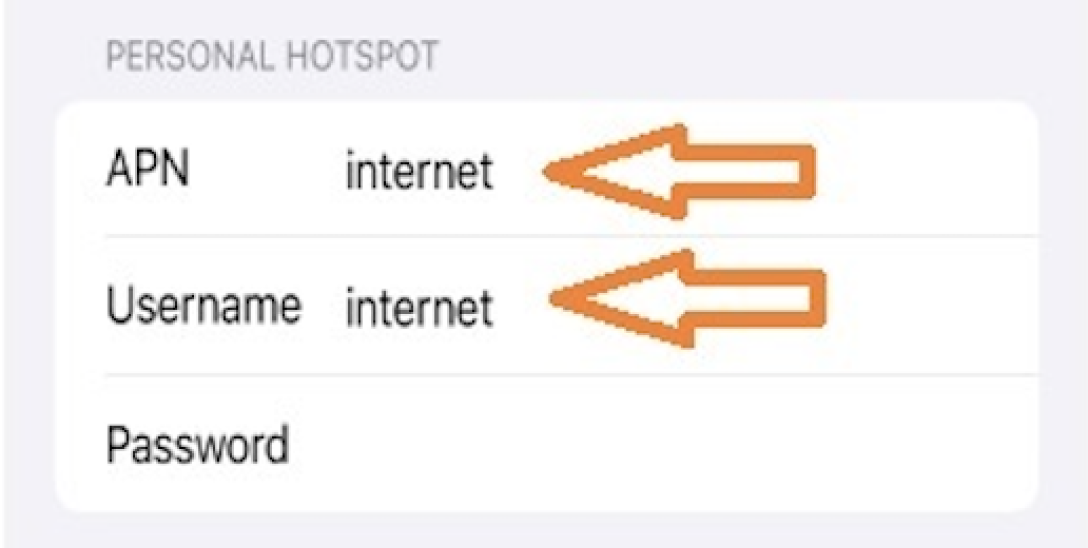
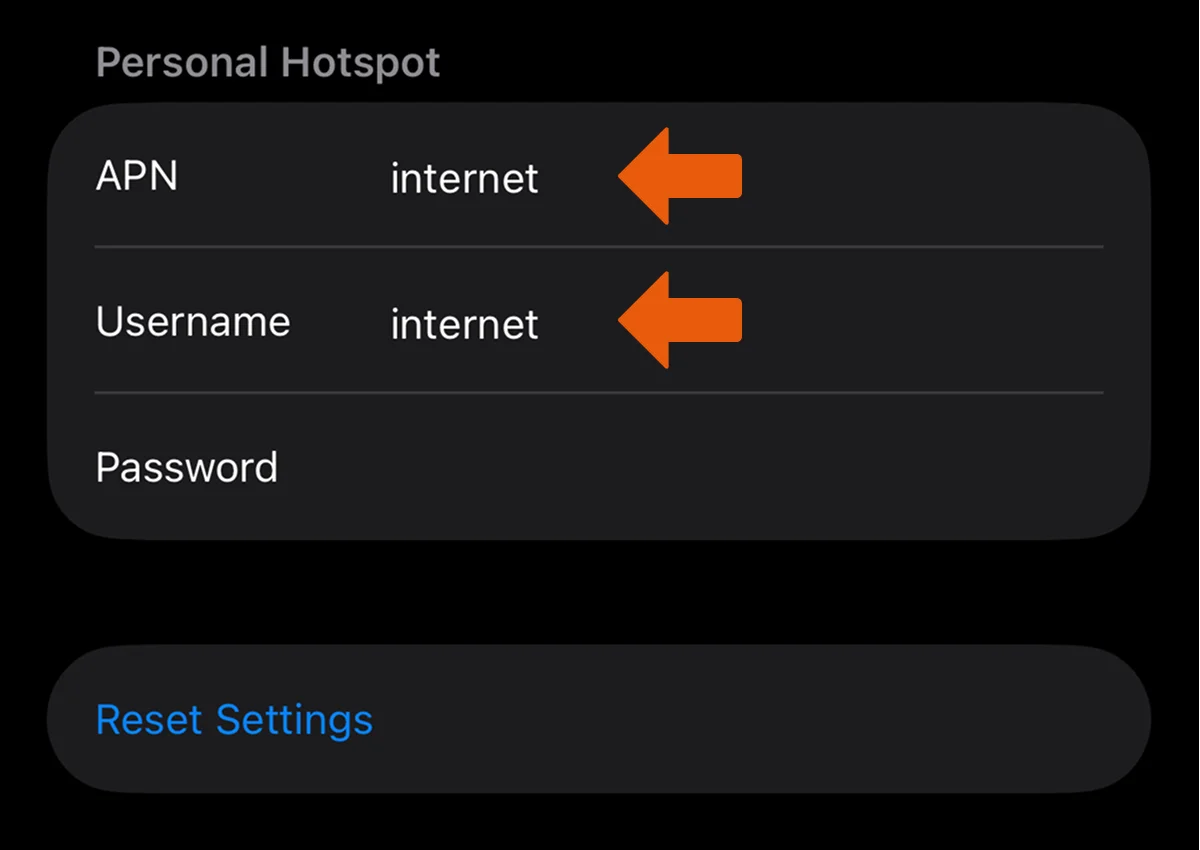
Scroll right down to the section that is labelled "PERSONAL HOTSPOT" with
entries to APN, Username and Password.
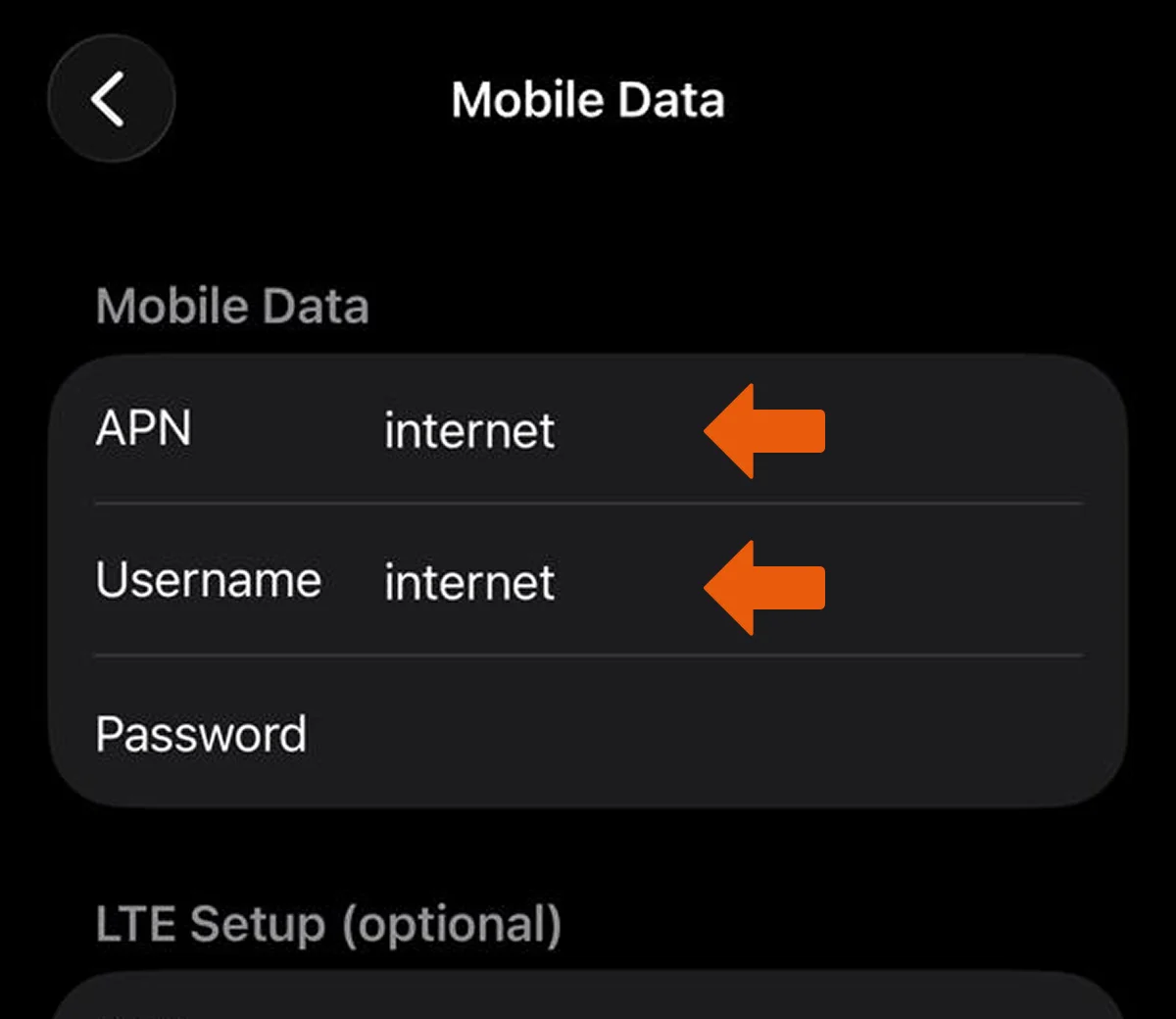
Step 5: Insert "internet" into the APN and Username fields
The APN and Username fields would possibly be blank. Enter in the word
"internet" in small letters into both. Leave the Password field blank.
Step 6: Turn your device off and back on (restart)
To reboot or restart your iPhone 15, simply press and hold the "Volume Up"
button and the "Power" button at the same time. And slide to switch off. Use the power button to
switch on the device again.
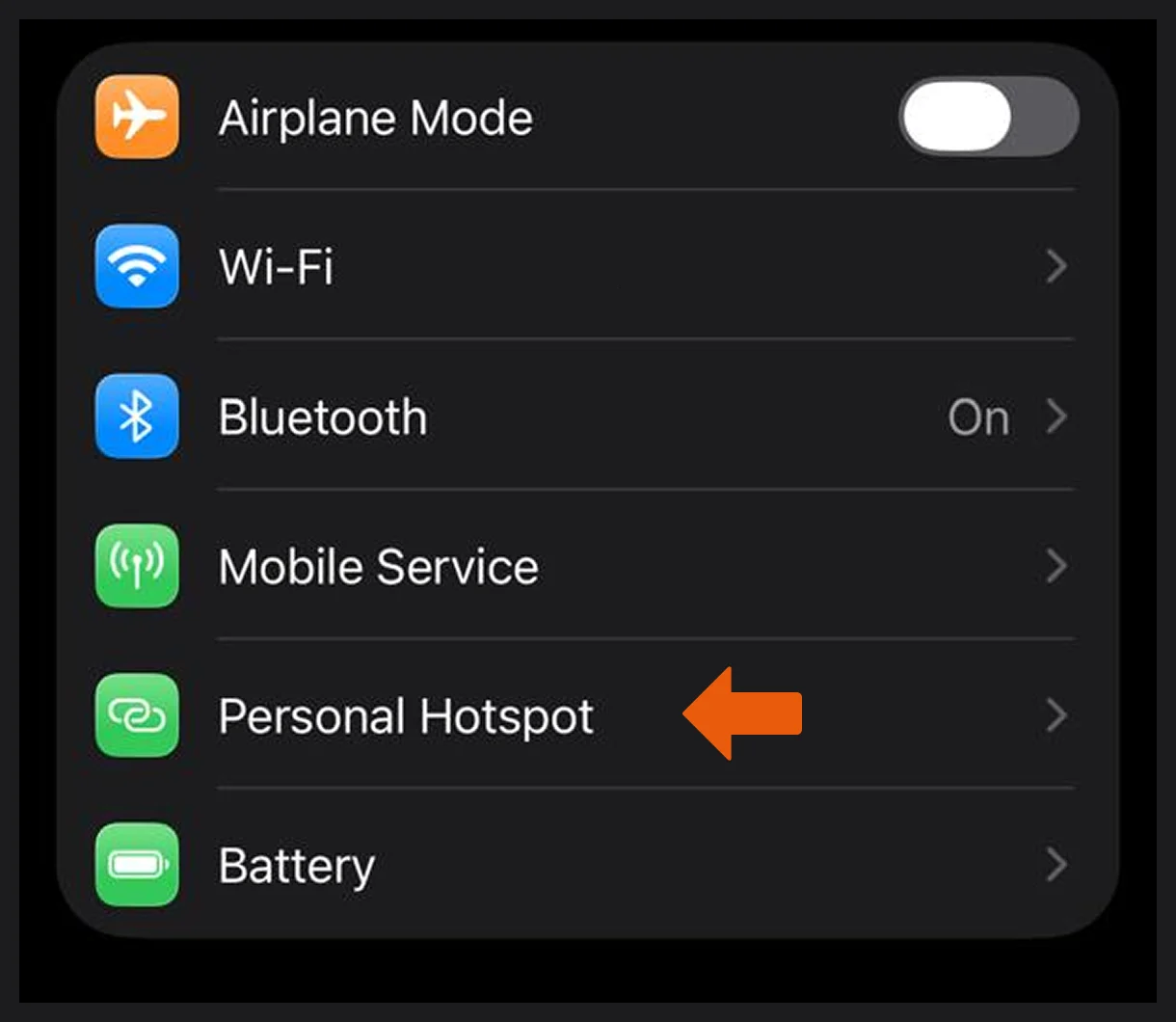
Step 7: Turn on "Personal Hotspot" in Settings > Mobile Services
Now return to the Settings app, and select the “Mobile Services” menu,
and you will find the new added menu for "Personal Hotspot" was successfully added and can now be
switched on.
Step 1: Select Settings
Step 2: Select Mobile Service
Step 3: Select Mobile Data Network
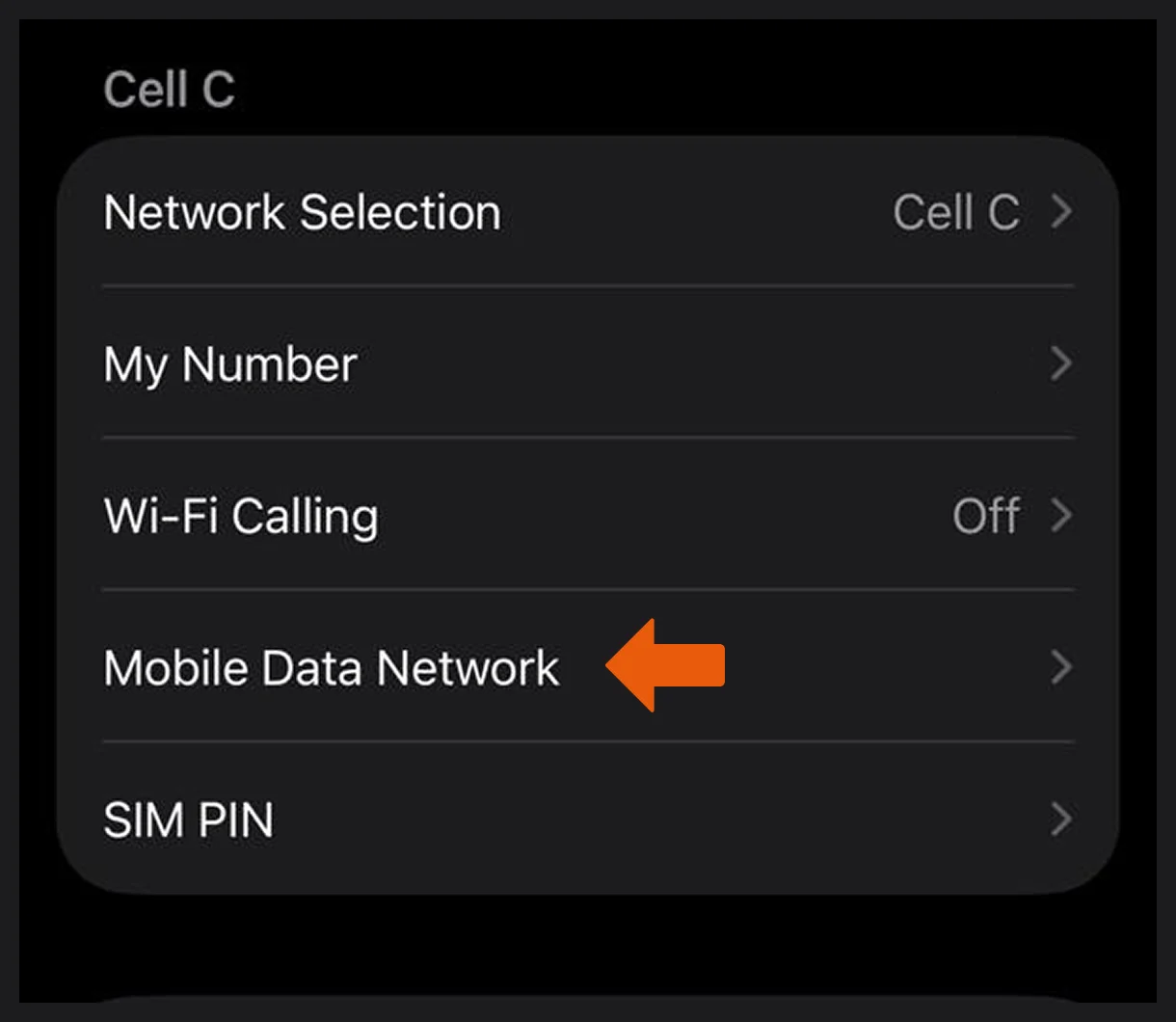
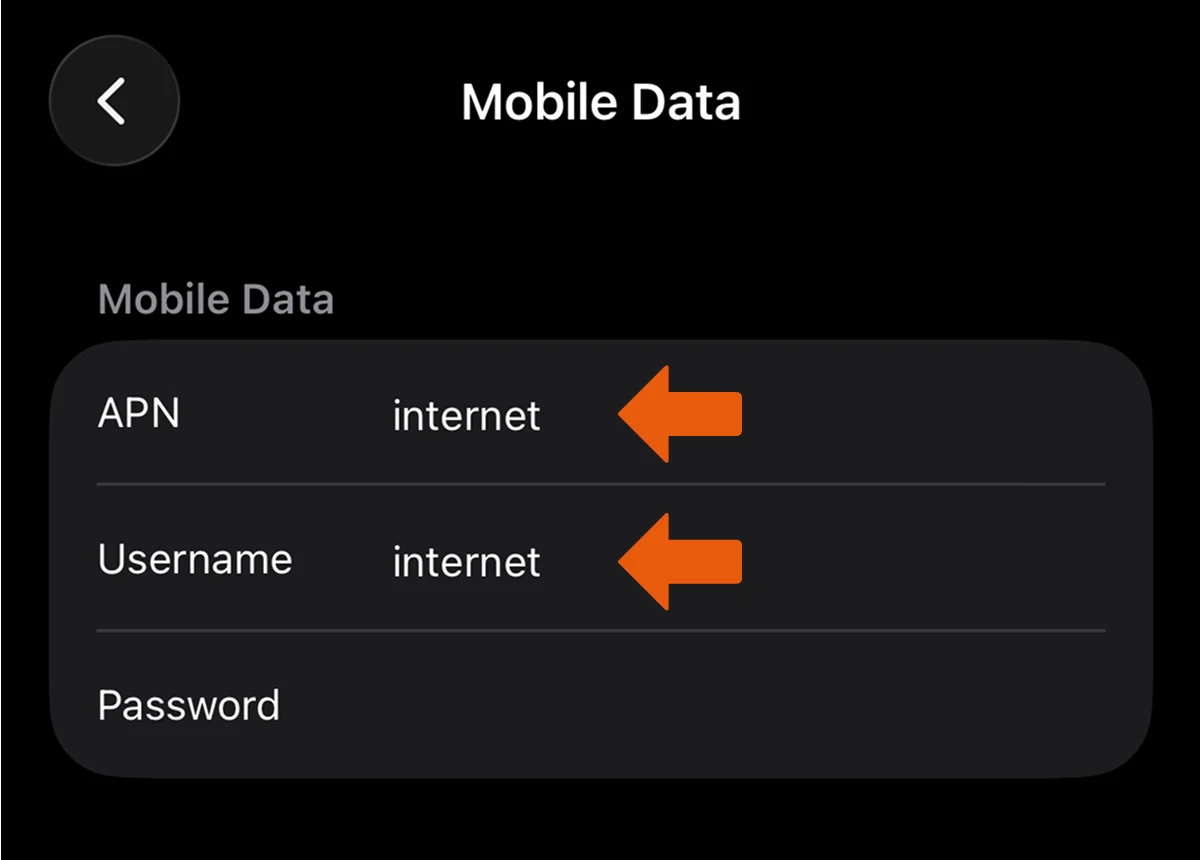
Step 4: Type: “internet” under mobile data for APN and Username.
Step 5. Scroll down to Personal Hotspot, type: “internet” under hotspot for APN and Username.
Step 6: Go back to Settings page and you will see hotspot is available. If not greyed out or not present, reboot the device and check again.
Step 1: Select Settings
Step 2: Select Mobile Service
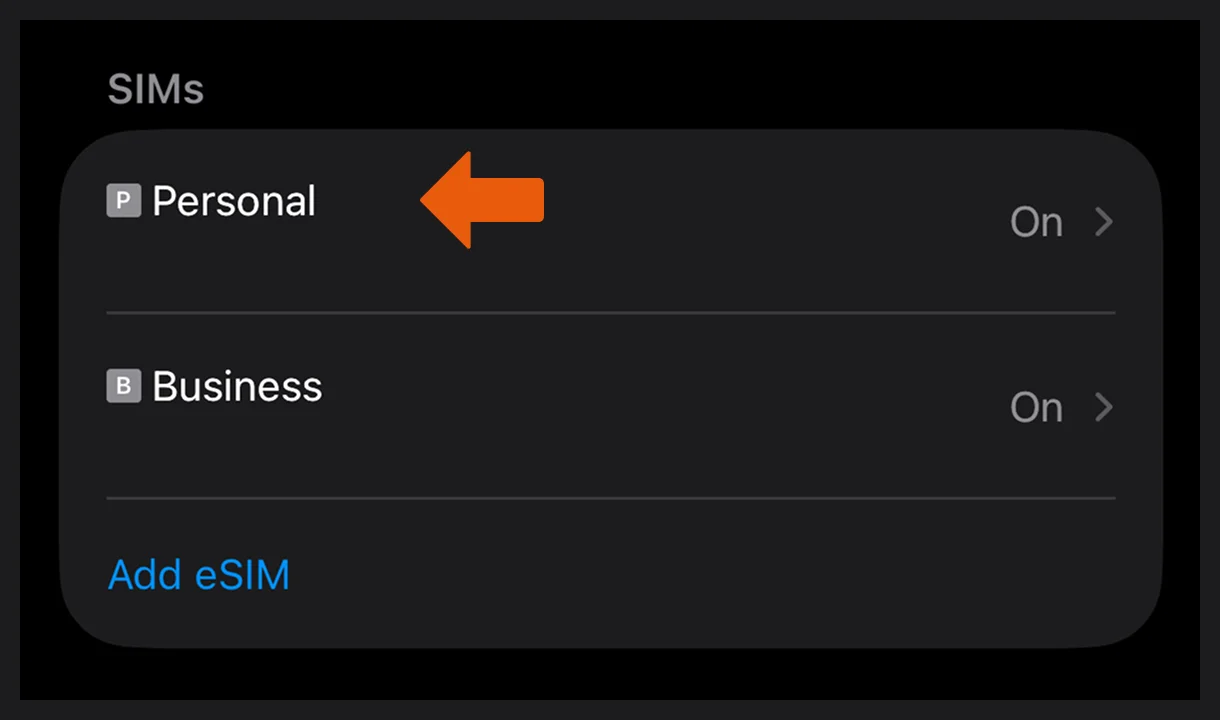
Step 3: Select your Cell C SIM that you want to use for the hotspot
Step 4: Select Mobile Data Network
Step 5: Type: internet under mobile data for APN and Username.
Step 6: Scroll down to Personal Hotspot, internet under hotspot for APN and Username.
Step 7: Go back to Settings page and you will see hotspot is available. If not greyed out or not present, reboot the device and check again.